
Stand alone client. Alpha
A MUD client that offers a graphical display and the classic telnet text only display side by side to convert any MUD game into a graphical experience.
Classic MUDs, drawn as you play
The DragonChat Client is made for Legends of Fate on DragonChat, where it draws the whole world: terrain, buildings, the people and monsters in each room, and every fight. It also connects to other MUDs, mapping the rooms they describe as you walk. Every word the MUD sends still reaches its terminal, so nothing is lost in the drawing.
- The world in 2D
- Fights on screen
- A real terminal
- Minimap
- Any MUD
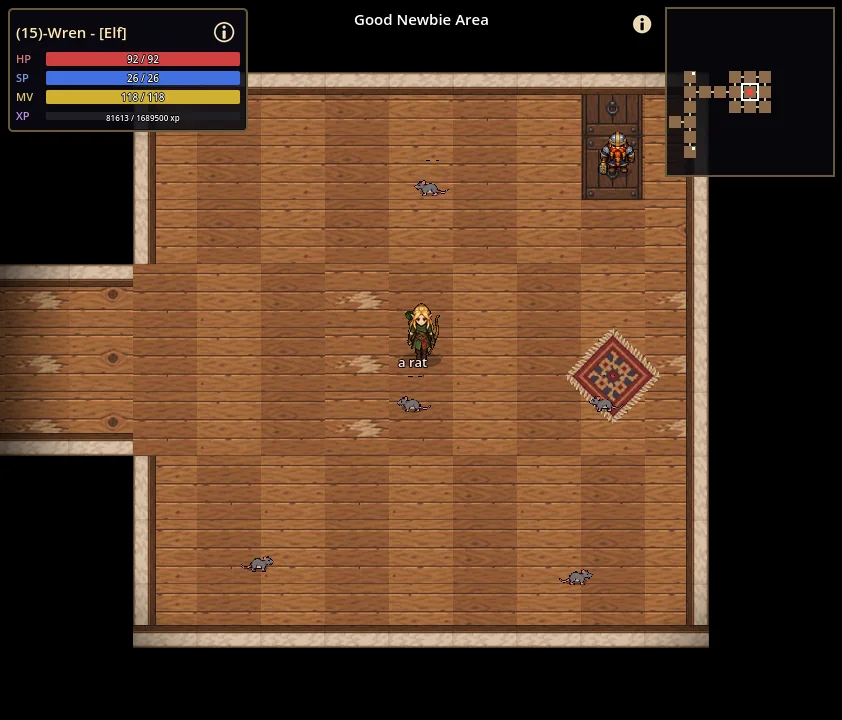
Walk the world
Every room is drawn from the game itself: the ground, the walls and doors, the shops, and who's standing there. Walk with the arrow keys or by typing, as you always have.
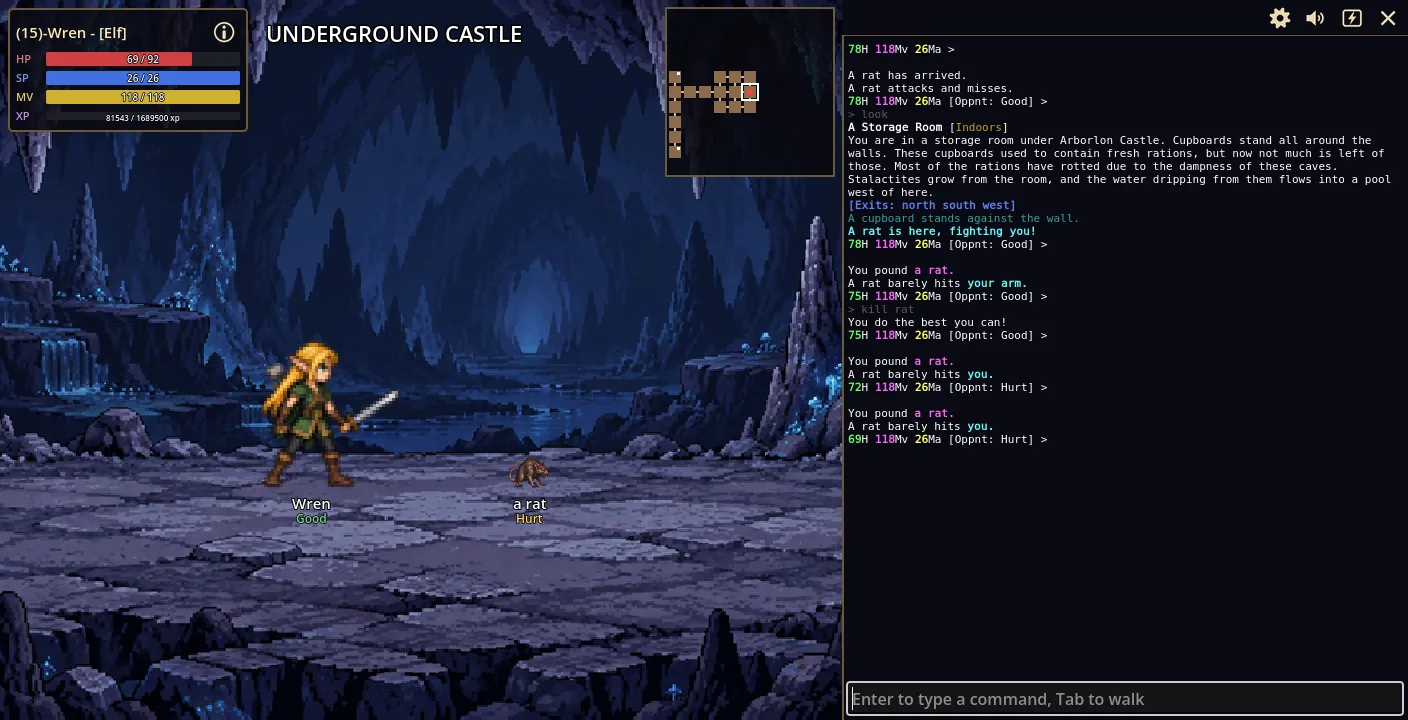
See the fight
When a fight starts, the view turns into a battle scene: your party and your enemies, each blow as it lands, and how everyone is holding up.
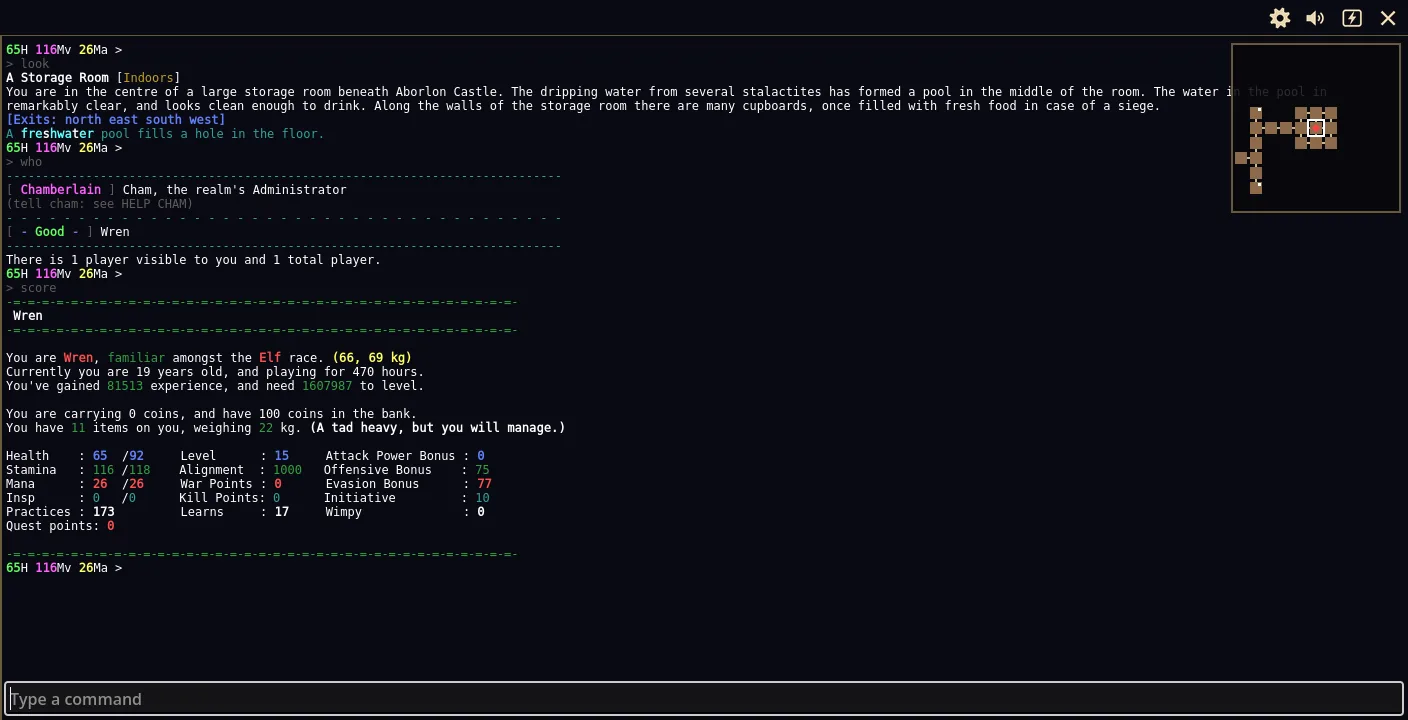
Or just the terminal
Prefer text? Switch the 2D view off and it's a plain MUD client across the whole window, with a floating minimap if you want one. Show any mix of the three.
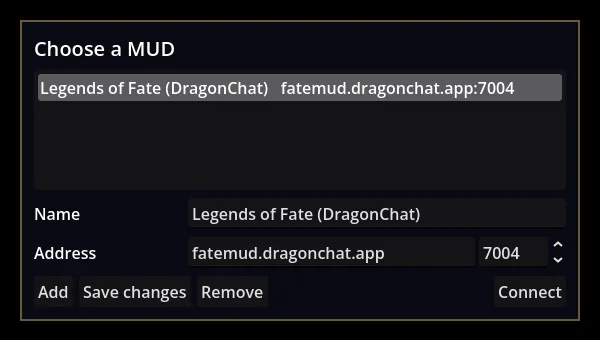
Connect anywhere
Legends of Fate is already in the list. Add any other MUD by its address and port. MUDs that send room data over GMCP get a map as you walk; every MUD gets a full terminal.
What's in the alpha
-
The world and its fights
Legends of Fate drawn room by room as the game sends it, with battles shown as they happen.
-
A proper terminal
Colour, the game's own floating map (config minimap), command history, and text that fills the window.
-
Minimap
The rooms around you, coloured by their ground, floating in a corner. On or off as you like.
-
Sound
The game's music and the sounds of a fight, with their own volume settings.
-
Remembers you
How you signed in, your email for a legacy account and your last adventurer, ready for next time. Never your password.
-
Keeps itself current
It checks for a new version when it starts and installs it when you say so, after checking the download is genuine.
Download
Version 0.1.0-alpha, 1 November 2026. SHA256 checksums. All releases on GitHub
Opening it the first time
The alpha isn't signed by Microsoft or Apple yet, so your computer asks once before it opens it.
- Windows
- Unzip it and run it. If SmartScreen says “Windows protected your PC”, choose More info, then Run anyway.
- macOS
- Unzip it and open it. When macOS won't, go to System Settings → Privacy & Security and choose Open Anyway. Untested so far; tell us how it goes.
- Linux
- Unzip it, make it runnable (chmod +x, or Properties → Allow executing), then open it.
Known rough edges
- It's an alpha: things will break, and settings may reset between versions.
- The macOS build hasn't been tried on a Mac yet.
- The macro editor is the simple one for function keys, on DragonChat only, for now. The full one, with aliases, triggers and timers, is on its way.
- On other MUDs the map is only as good as what the MUD sends: room numbers and exits over GMCP.
Found a bug? Have an idea?
Everything about the client is talked over on our Discord server: bugs, ideas, and what works on your system.
Join our Discord and post in #game-feedback.
The client's world and battle art is AI-generated.